
How to use MSRX Split
Split a trip's costs with friends from your phone, in about two minutes to set up. These pictures are from a phone; on a laptop everything is in the same place, with the sections down the left.
Last updated 7 October 2026
Getting started
-
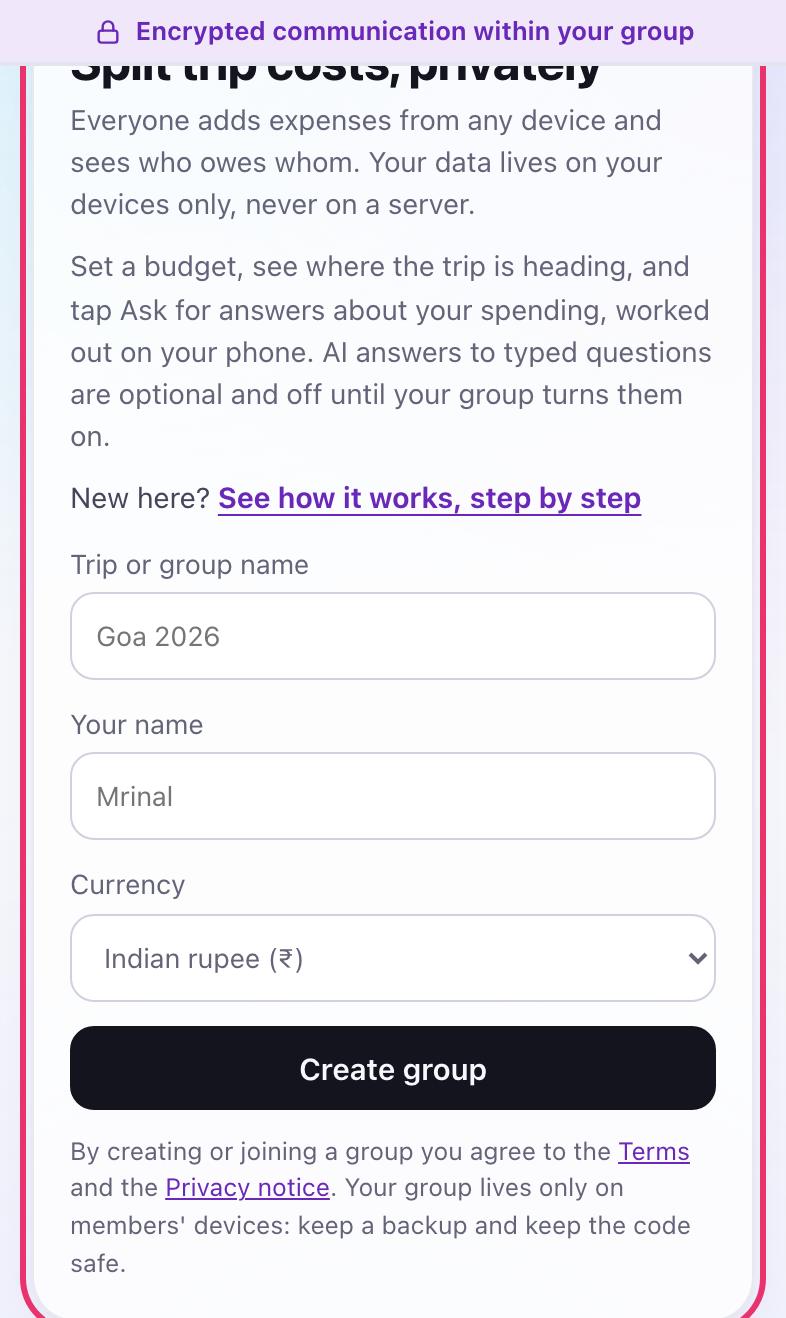
Open the app and put it on your home screen
Open split.msrx.co.in in your phone's browser. There is no account to make and nothing to download from an app store.
Put it on your home screen so it opens like an app and your trips are kept safe. On iPhone, in Safari, tap the Share button, then Add to Home Screen. On Android, in Chrome, tap the ⋮ menu, then Add to Home screen or Install app.
-
Create your trip
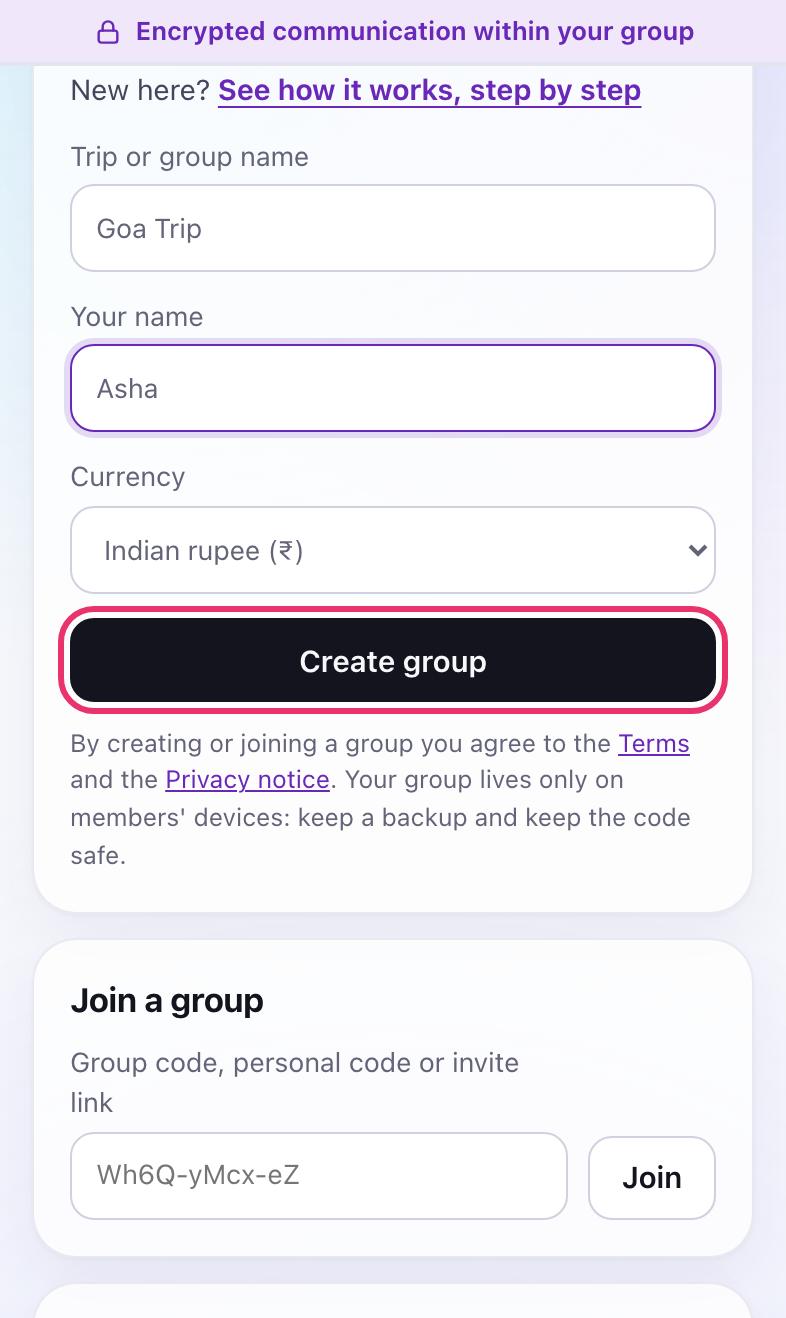
Type a name for the trip and your own name, check the currency, and tap Create group. You become the trip's admin.
-
Keep the group code safe
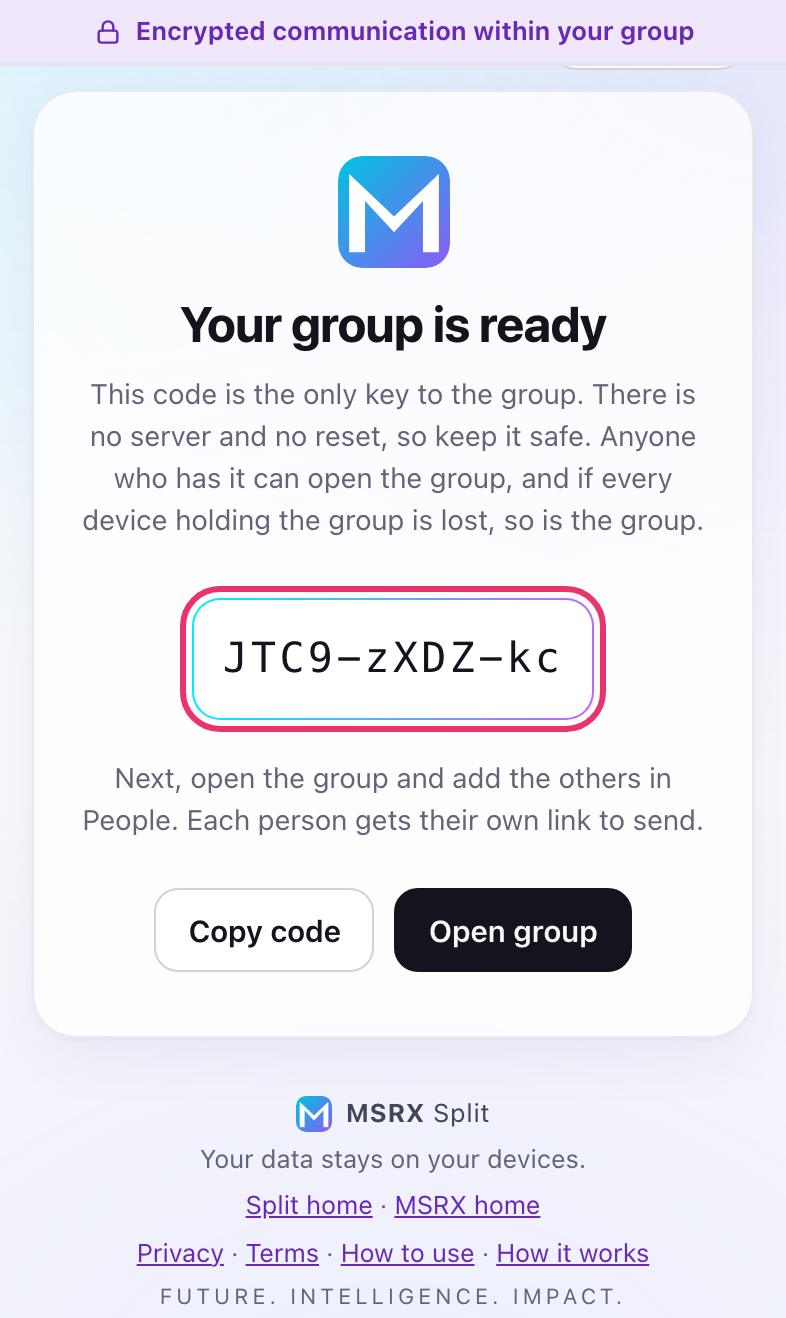
Your trip gets a random 10-character code. It is the key to the group: anyone who has it can open the trip, and there is no server that can reset it. Tap Copy code and keep it somewhere private, then tap Open group.
-
Find your way around the trip
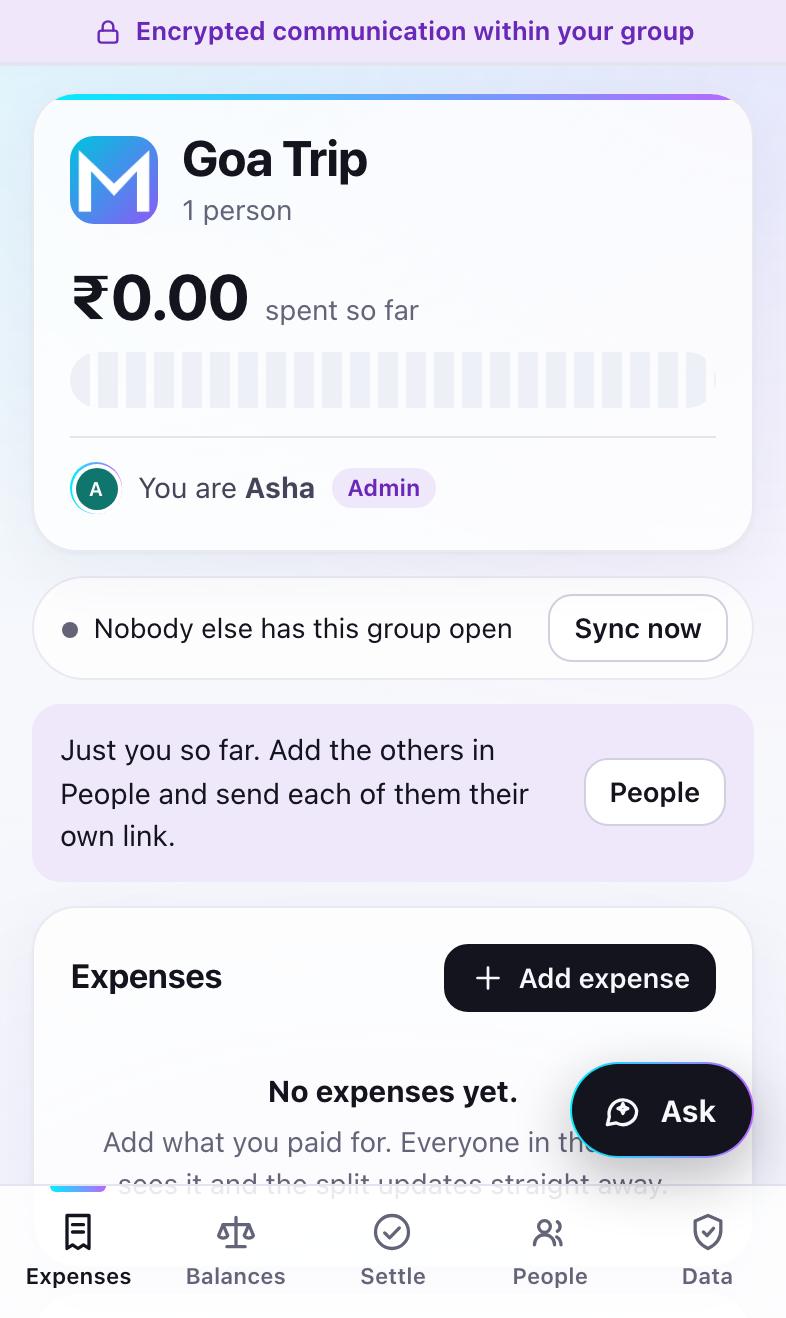
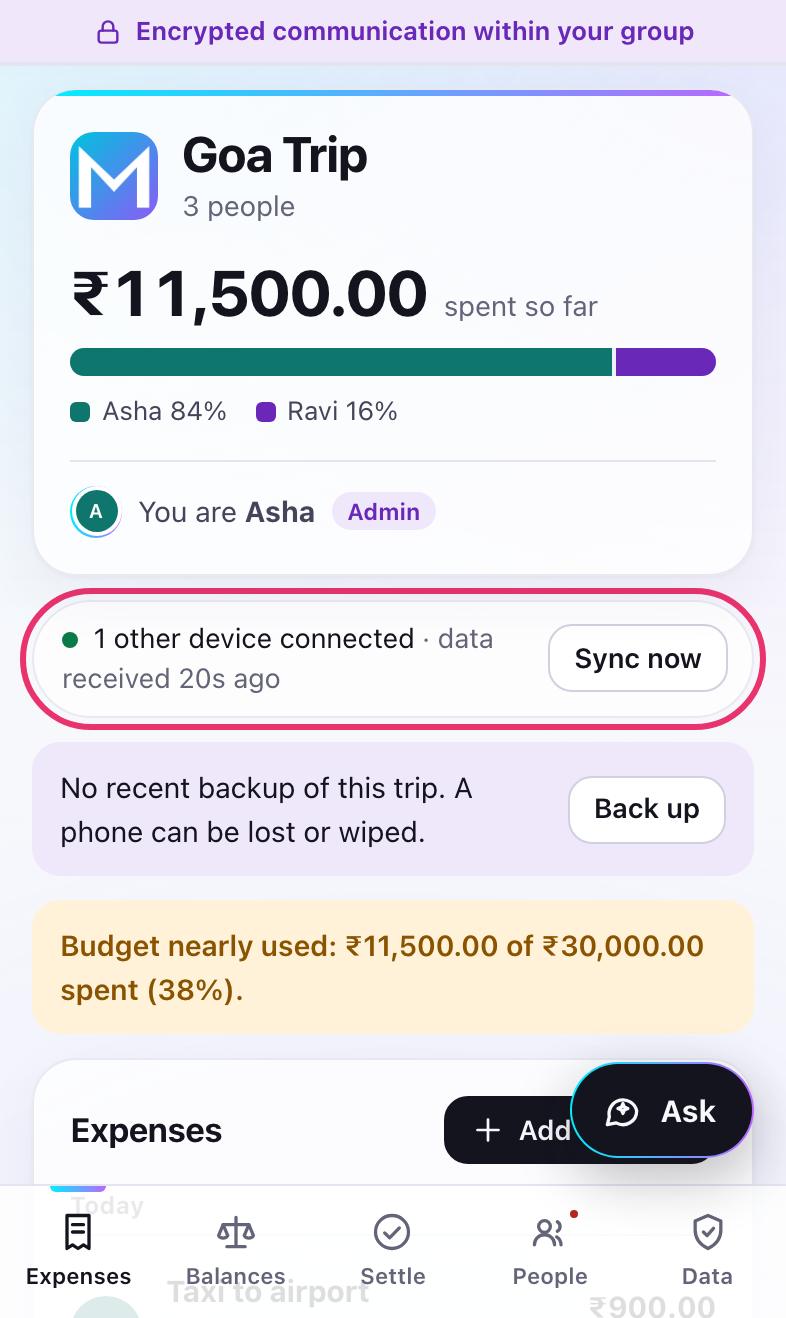
The card at the top shows what the group has spent and who you are. Below it, the sync line says whether another member's phone is connected. The tabs at the bottom take you to Expenses, Balances, Settle, People and Data, and the Ask button in the corner answers questions about the trip's spending.
Bringing people in
-
Add each person and send them their own link
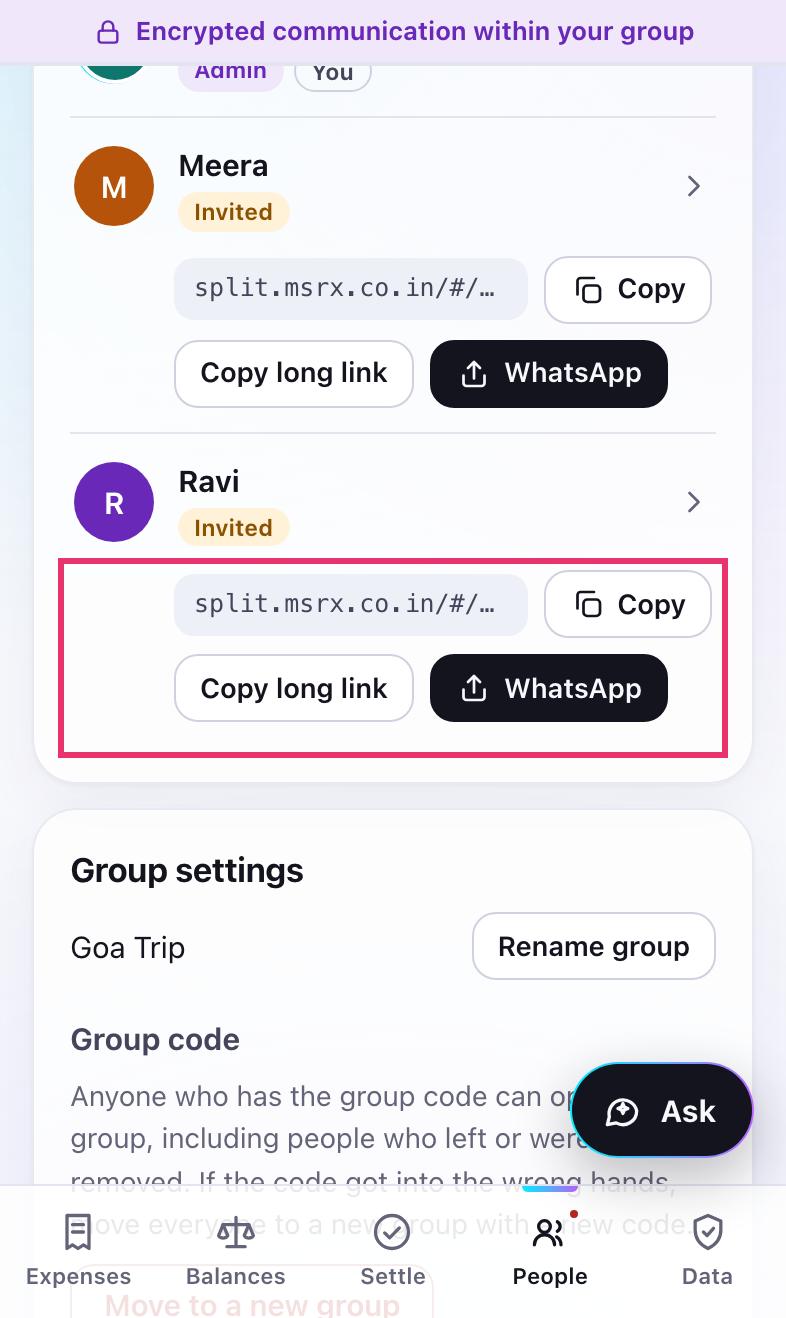
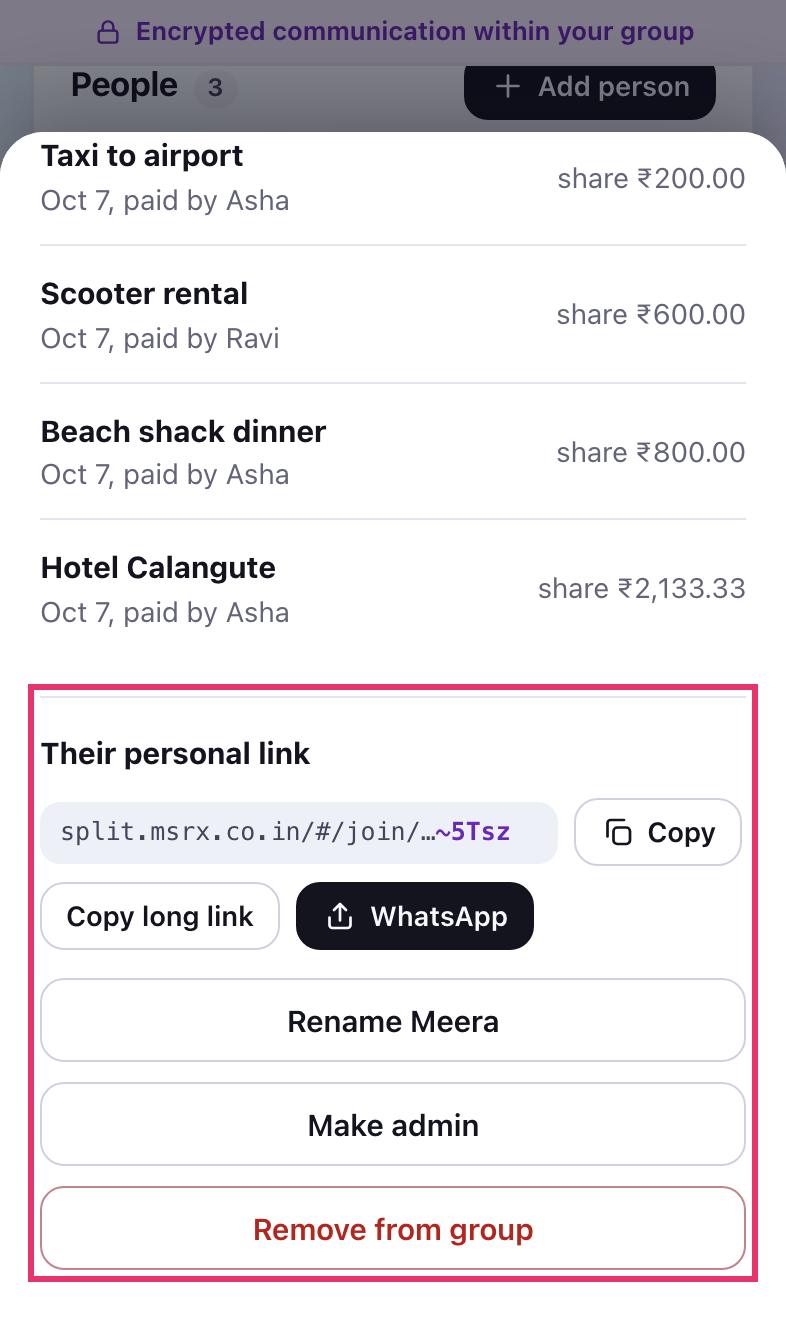
In People, tap Add person, type their name and tap Add and get link. Their personal link appears right under their name. Tap WhatsApp (or Share) to send it, or Copy to paste it anywhere.
Send each person only their own link: whoever opens it joins as that person. If they will open it when nobody else in the group is online, send Copy long link instead. It is longer, but it carries a copy of the trip so it opens straight away.
-
Joining from a link
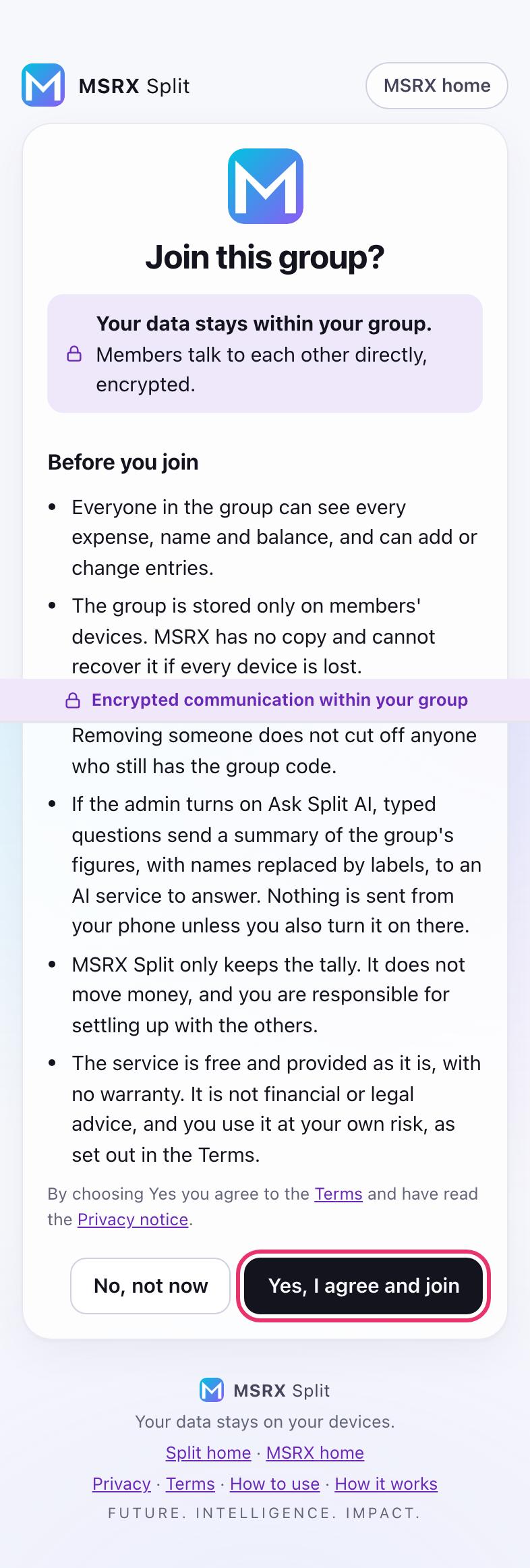
When your friend opens their link, they first see who runs the group, what joining means and links to the Terms and Privacy notice. Nothing is saved on their phone until they tap Yes, I agree and join.
-
They're in
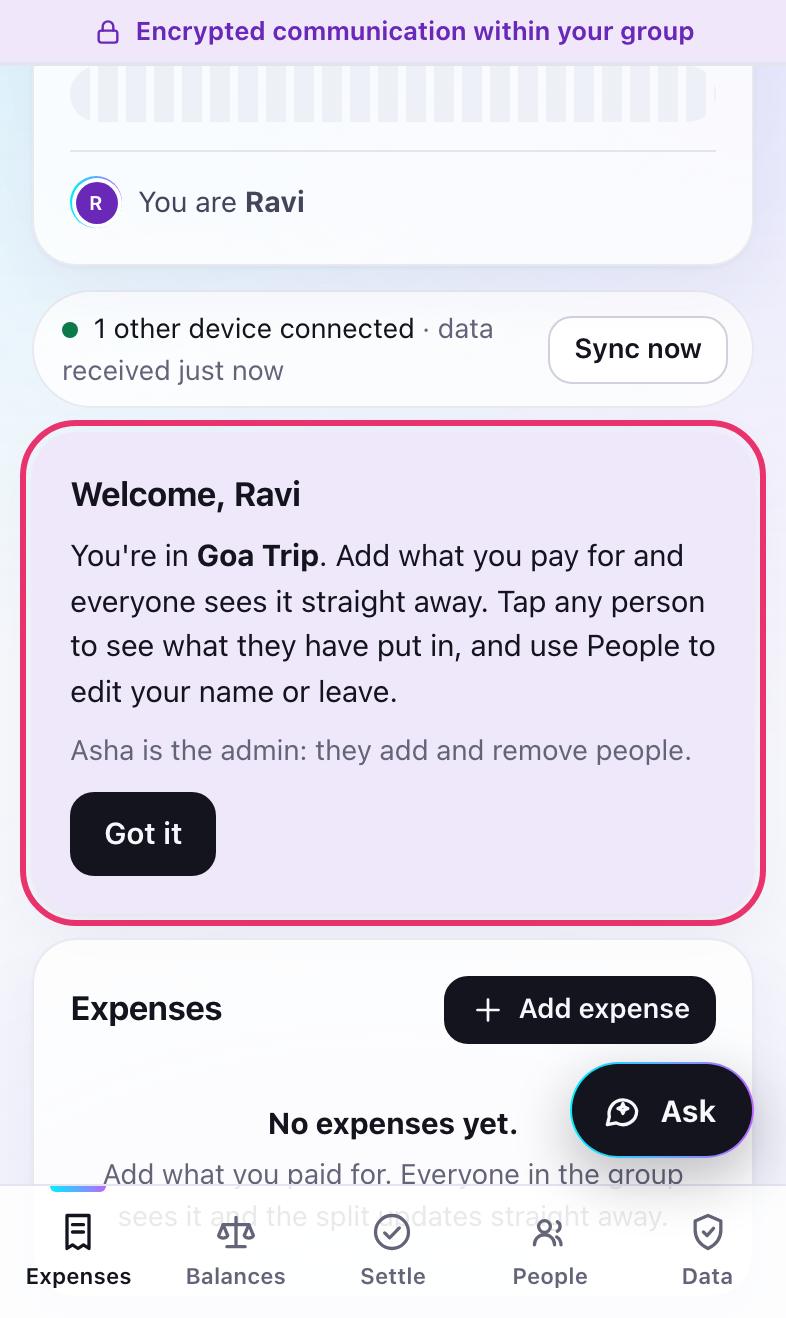
They land in the trip already set up as themselves, with a short welcome that names the admin. While both phones have the app open, the sync line shows the other device connected and everything flows across on its own.
Recording what you spend
-
Add an expense
On Expenses, tap Add expense. Write what it was for and the amount (1,200.50 is fine). It is recorded as paid by you; tap Someone else paid if a friend paid. A category is optional.
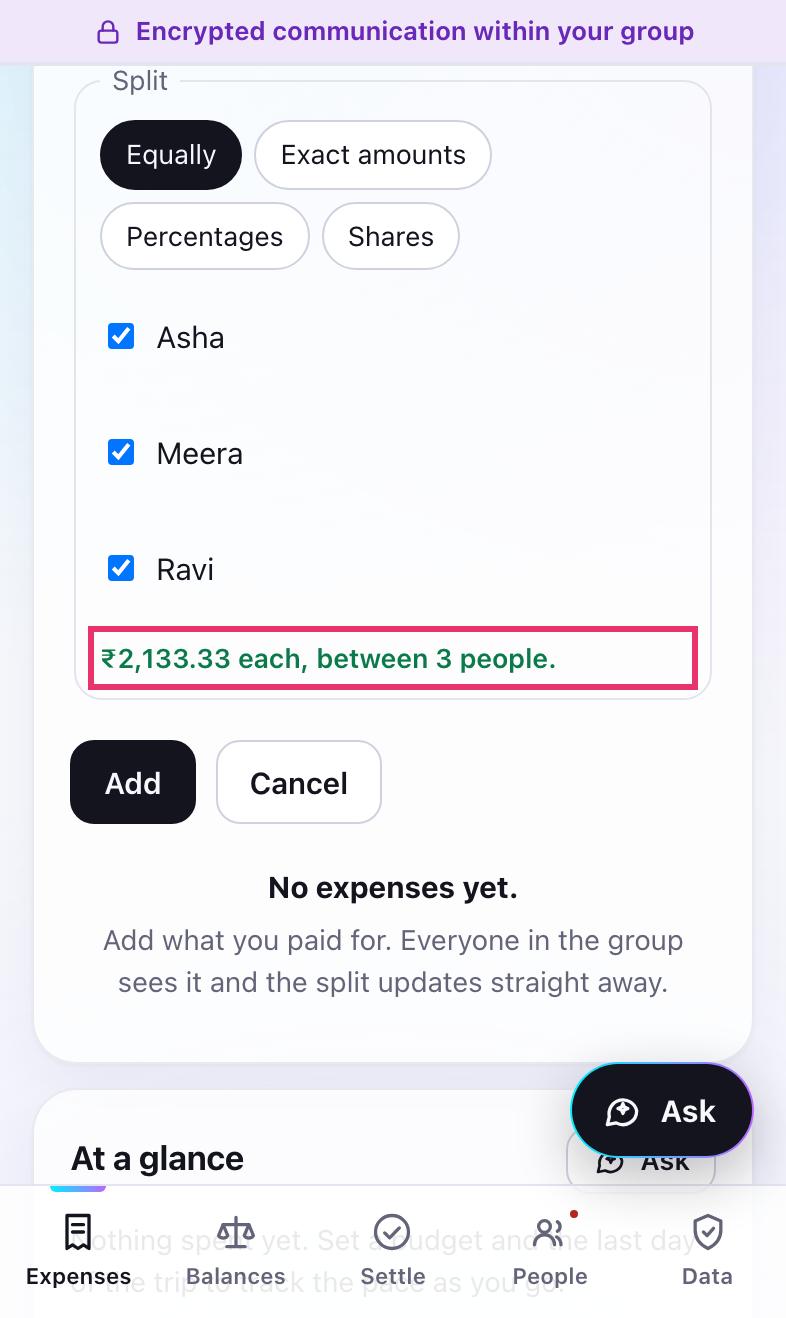
By default it is split equally between everyone, and the form shows each person's share as you type. Untick anyone who wasn't part of it, then tap Add.
-
Split it a different way
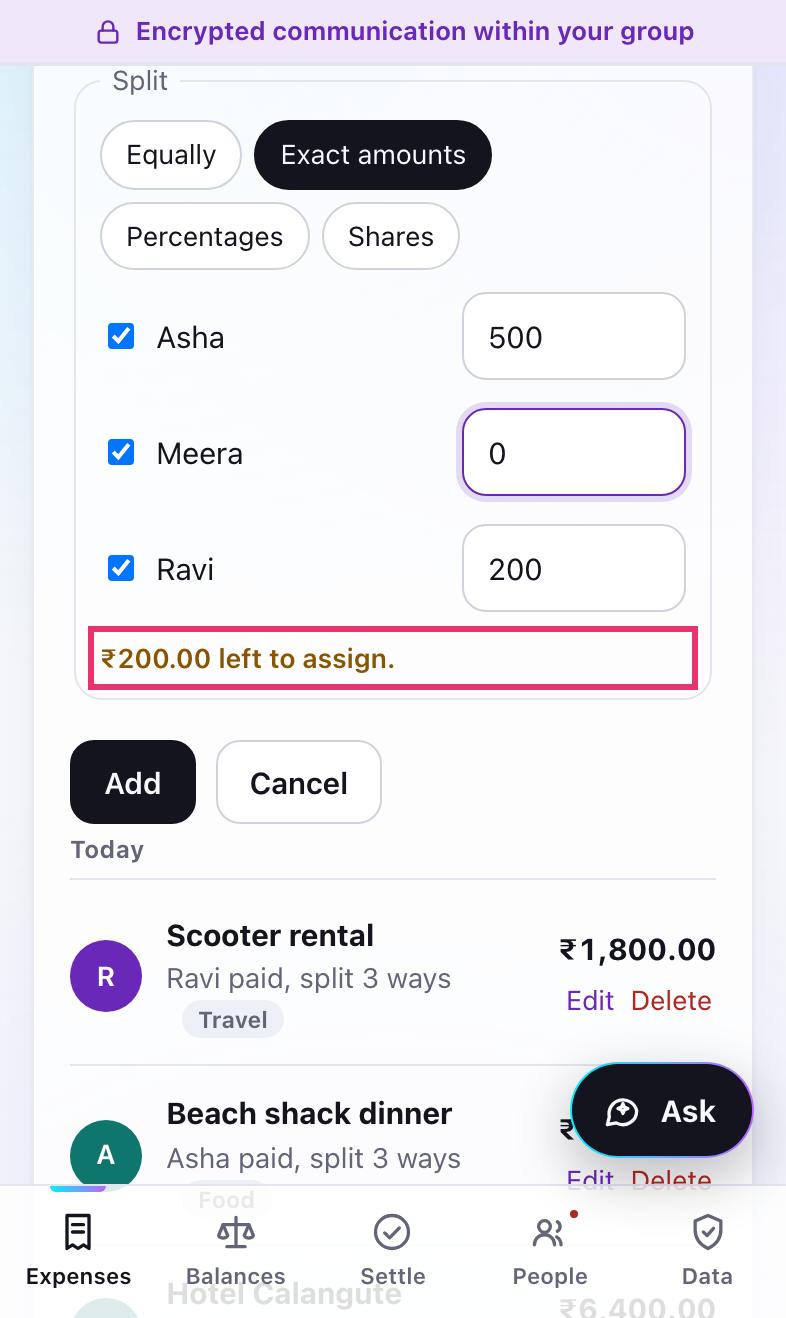
Under Split, choose Exact amounts, Percentages or Shares and type a value for each person. The note below tells you what is left to assign, and the app won't save a split that doesn't add up, so mistakes can't slip into the totals.
-
See every expense, day by day
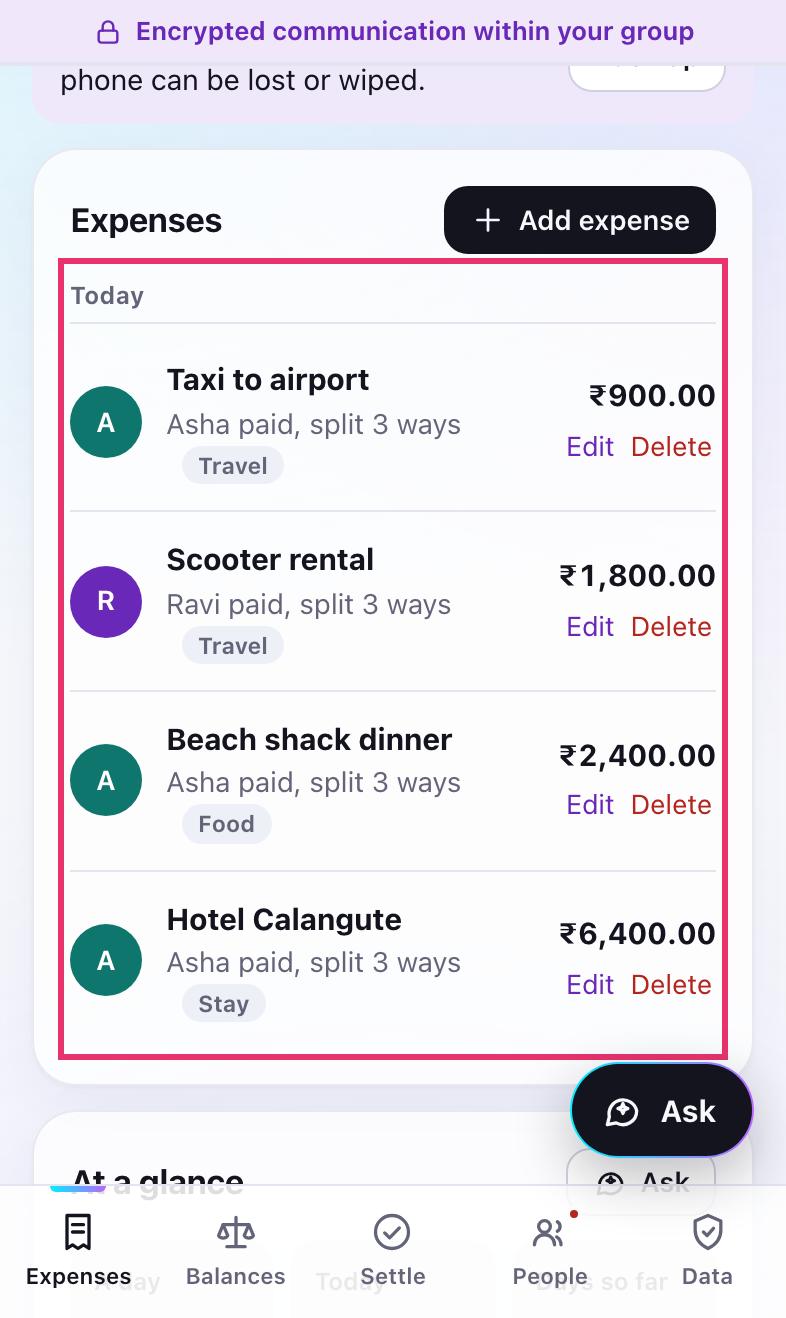
Expenses are listed newest first under Today, Yesterday and the date. Each line says who paid and how it was split. Tap Edit to change one.
-
Made a mistake? Undo
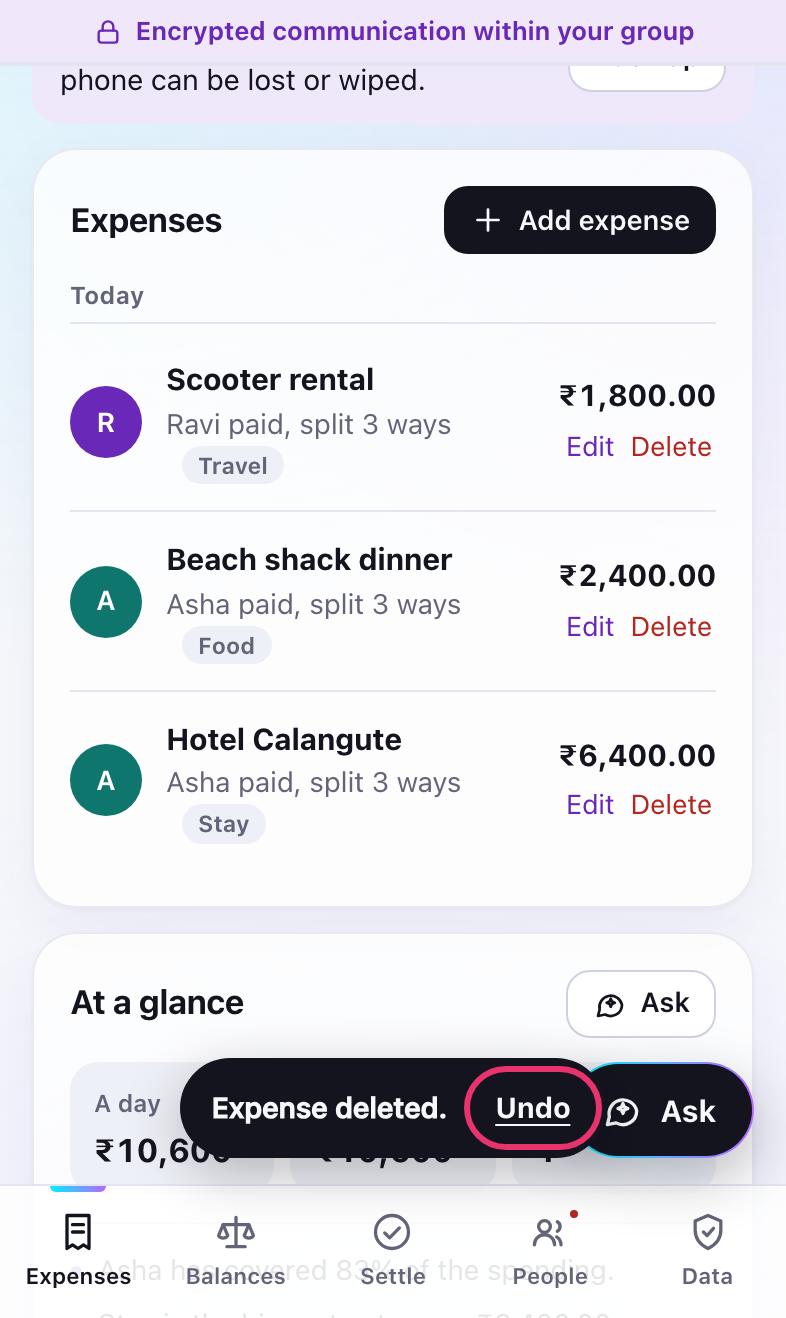
Delete takes one tap, and an Undo button appears for a few seconds in case it was the wrong one. Marking a debt paid works the same way.
Seeing where the money went
-
Spending by person
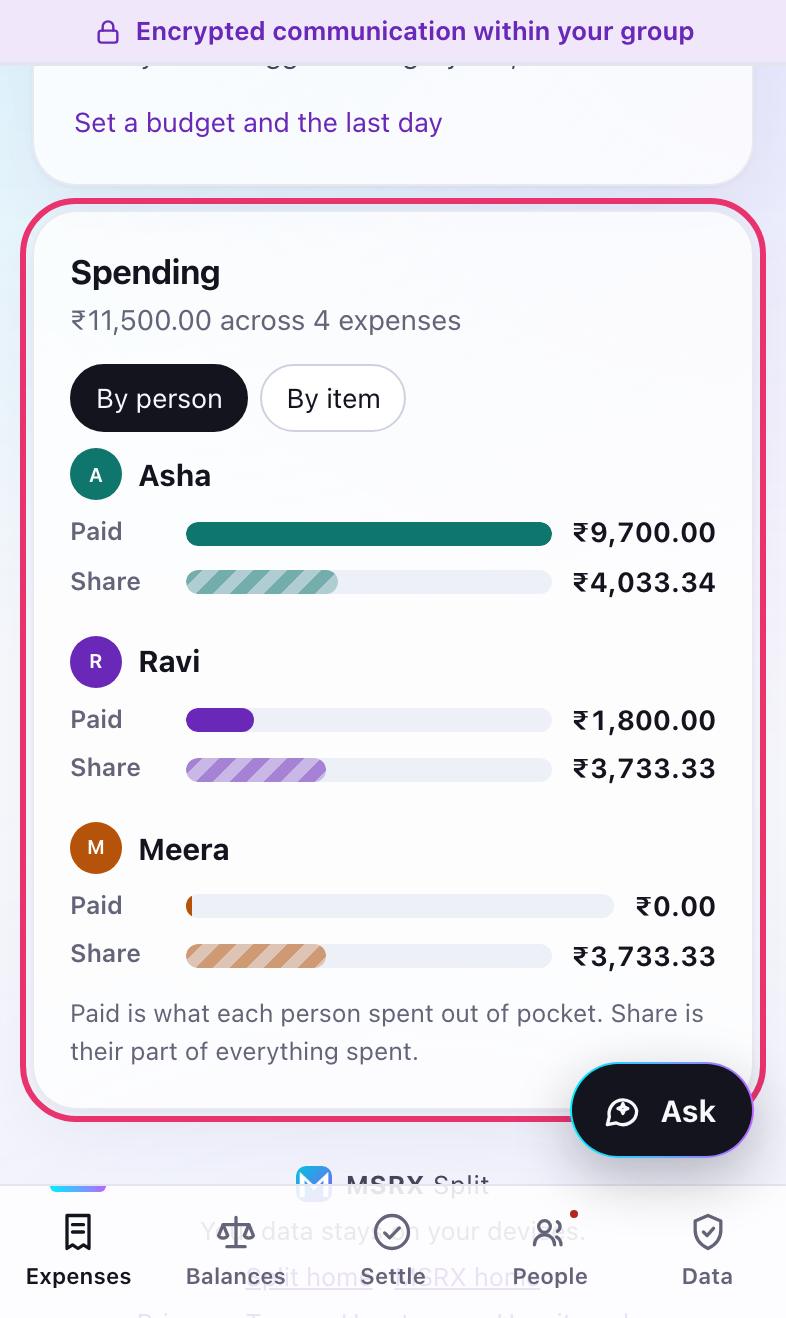
Below the expenses, Spending shows each person's Paid (what they spent out of pocket) against their Share (their part of everything spent). Whoever's Paid bar is longer than their Share is owed money.
-
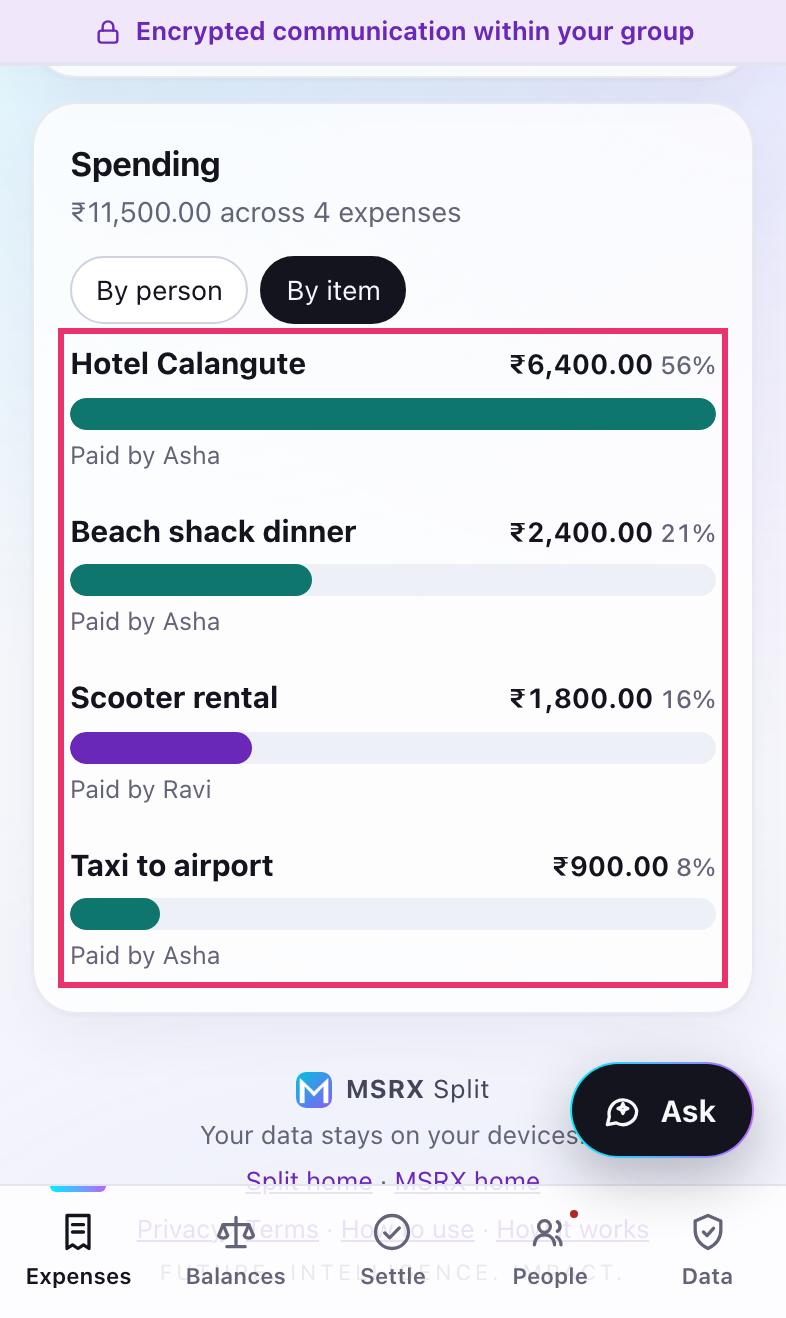
Spending by item
Tap By item to see the biggest costs first, each bar coloured by who paid it.
-
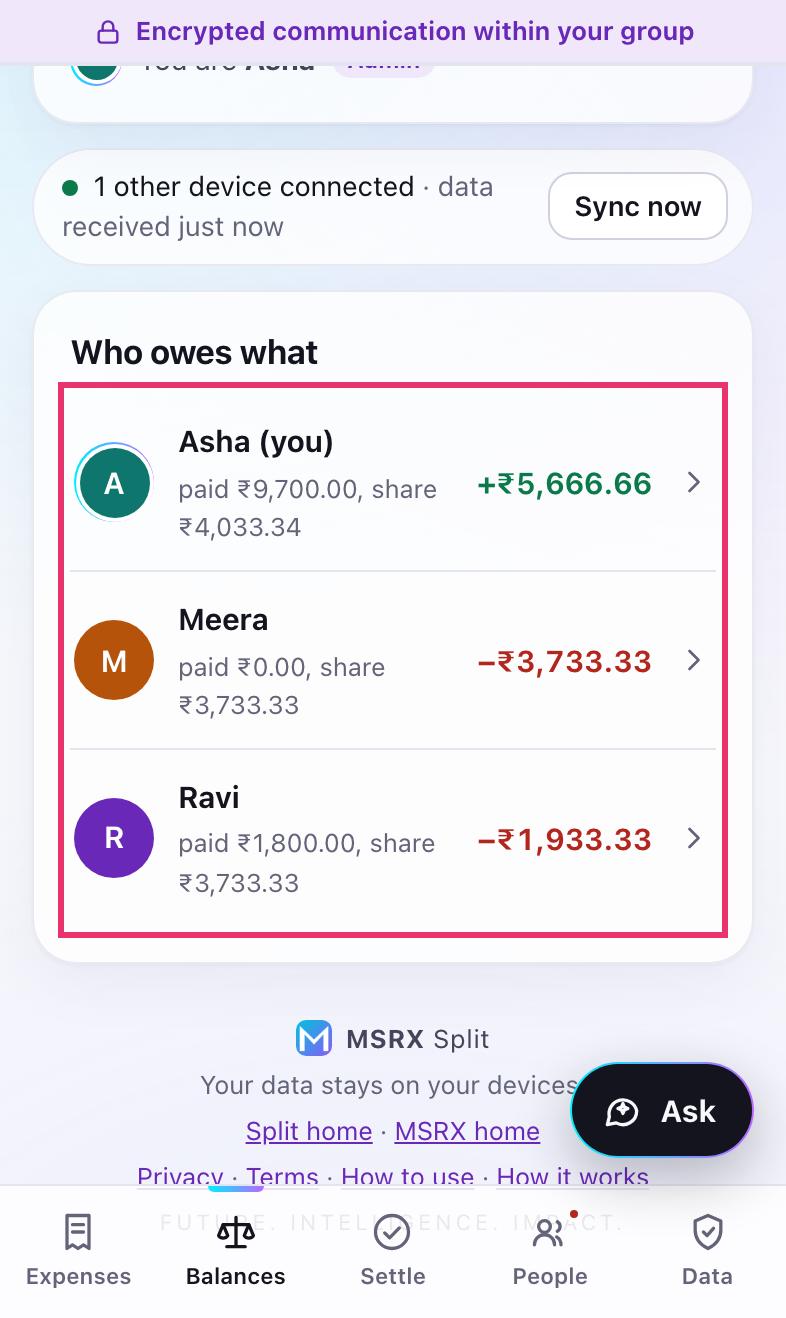
Balances: who owes what
Balances shows each person's total. A green amount means the group owes them; red means they owe the group. Tap anyone for the detail.
-
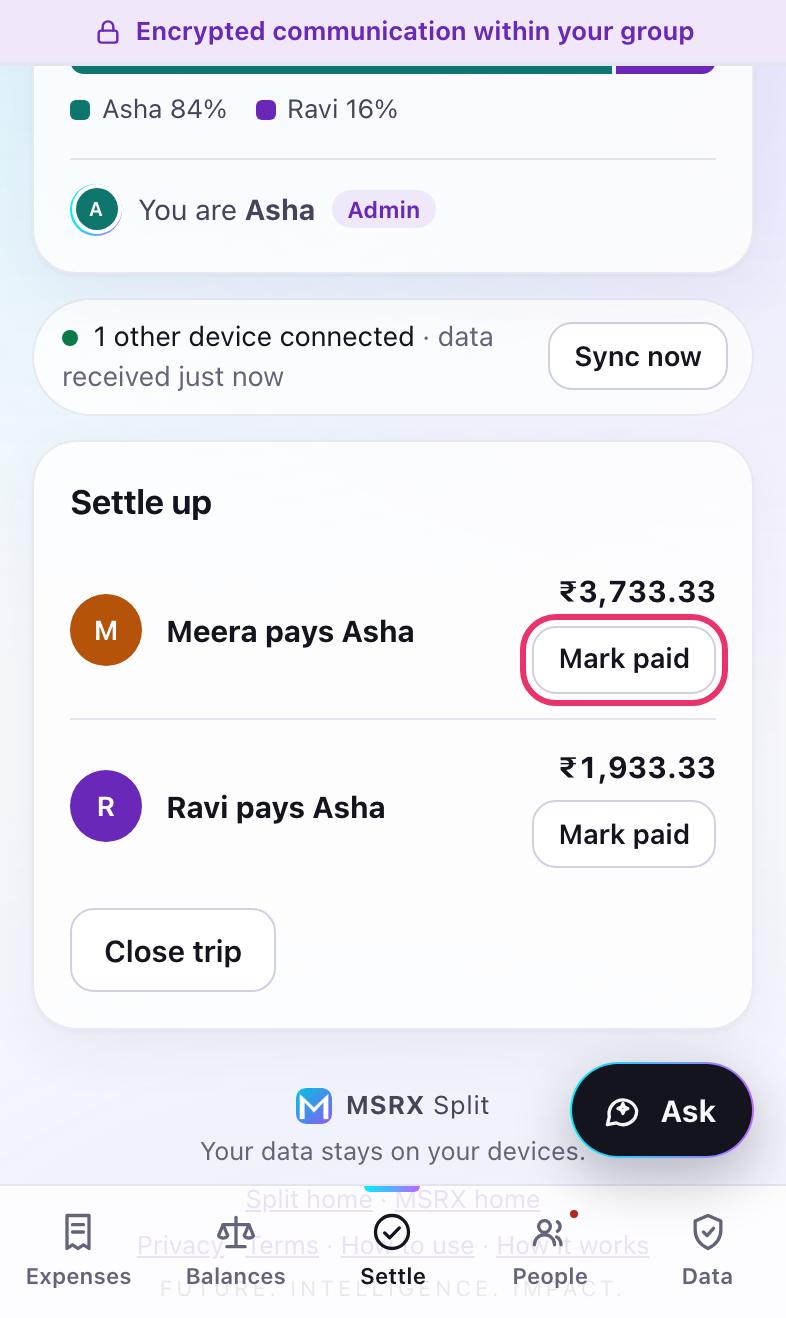
Settle up
Settle works out the fewest payments that clear every debt. Pay each other however you like (UPI, cash, card) and tap Mark paid so everyone's tally updates. MSRX Split never moves money itself.
When the trip is over, the admin can tap Close trip to make it read-only for everyone.
Budget, forecast and Ask
-
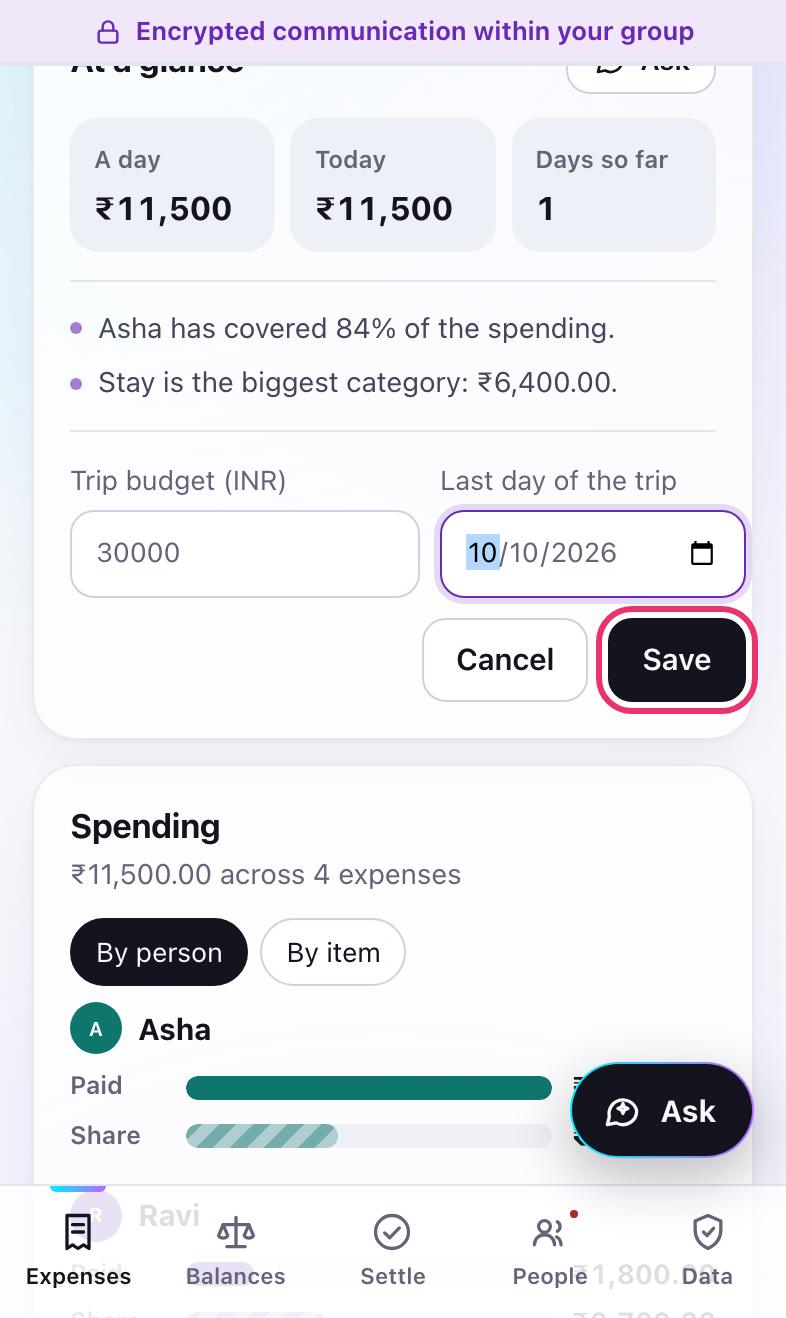
Set a budget and the last day
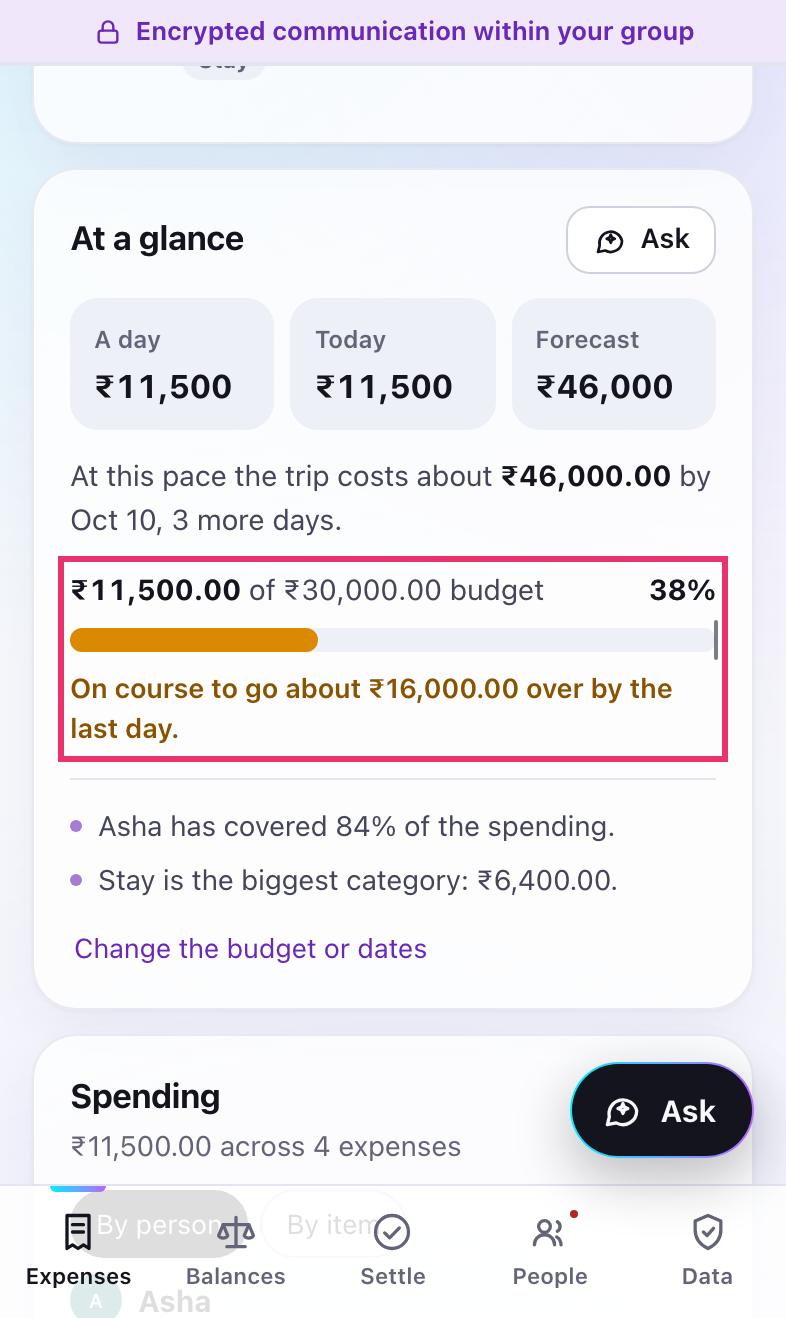
On Expenses, the At a glance card shows what the trip costs a day. The admin taps Set a budget and the last day, types the trip's budget and picks the last day, then taps Save. Everyone in the group sees the same budget.
-
Watch the pace and the budget
At a glance now shows the spend a day, today's spending and a forecast for the whole trip at this pace. The budget bar fills as you spend; the line on it marks where the forecast lands. When most of the budget is gone, or the forecast goes over, the bar turns amber and a warning appears at the top of Expenses.
The forecast is a straight line from the spending so far, so treat it as a guide.
-
Ask a quick question
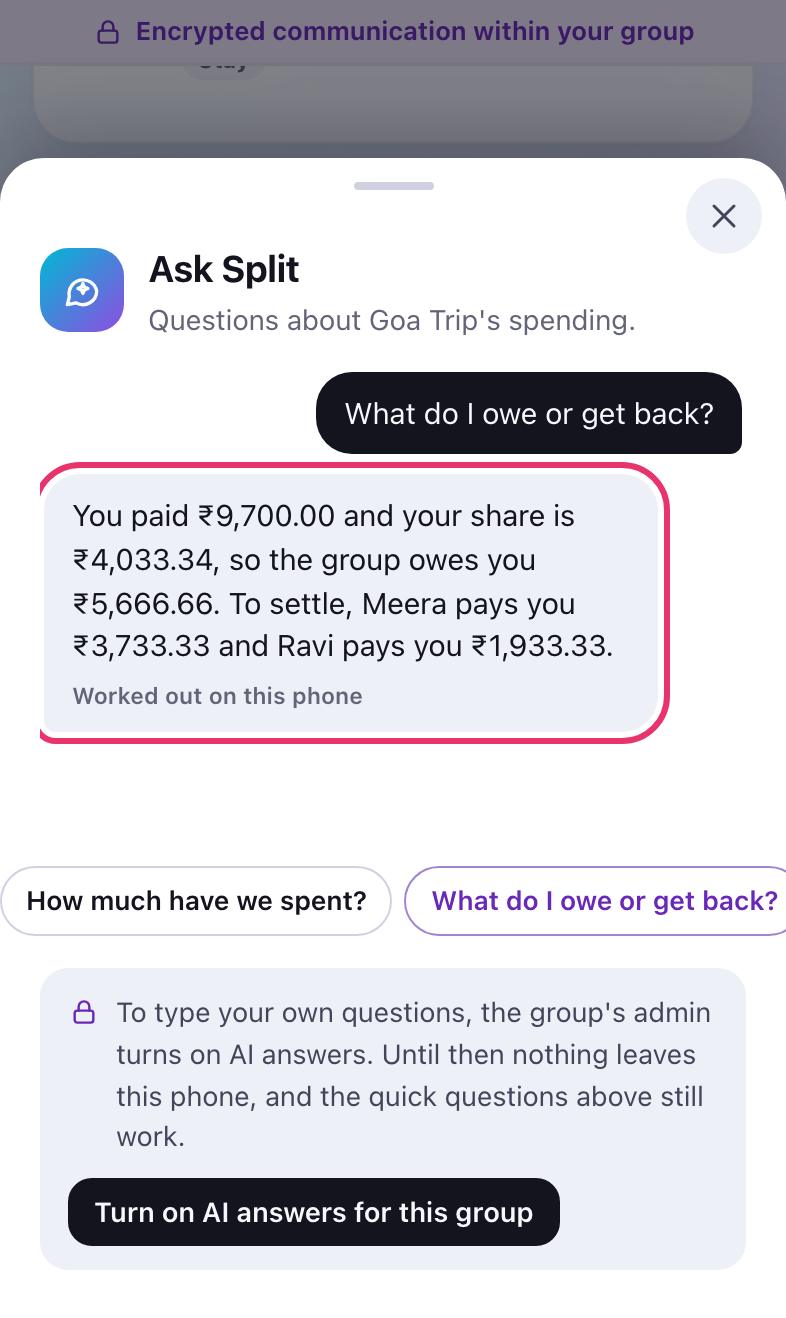
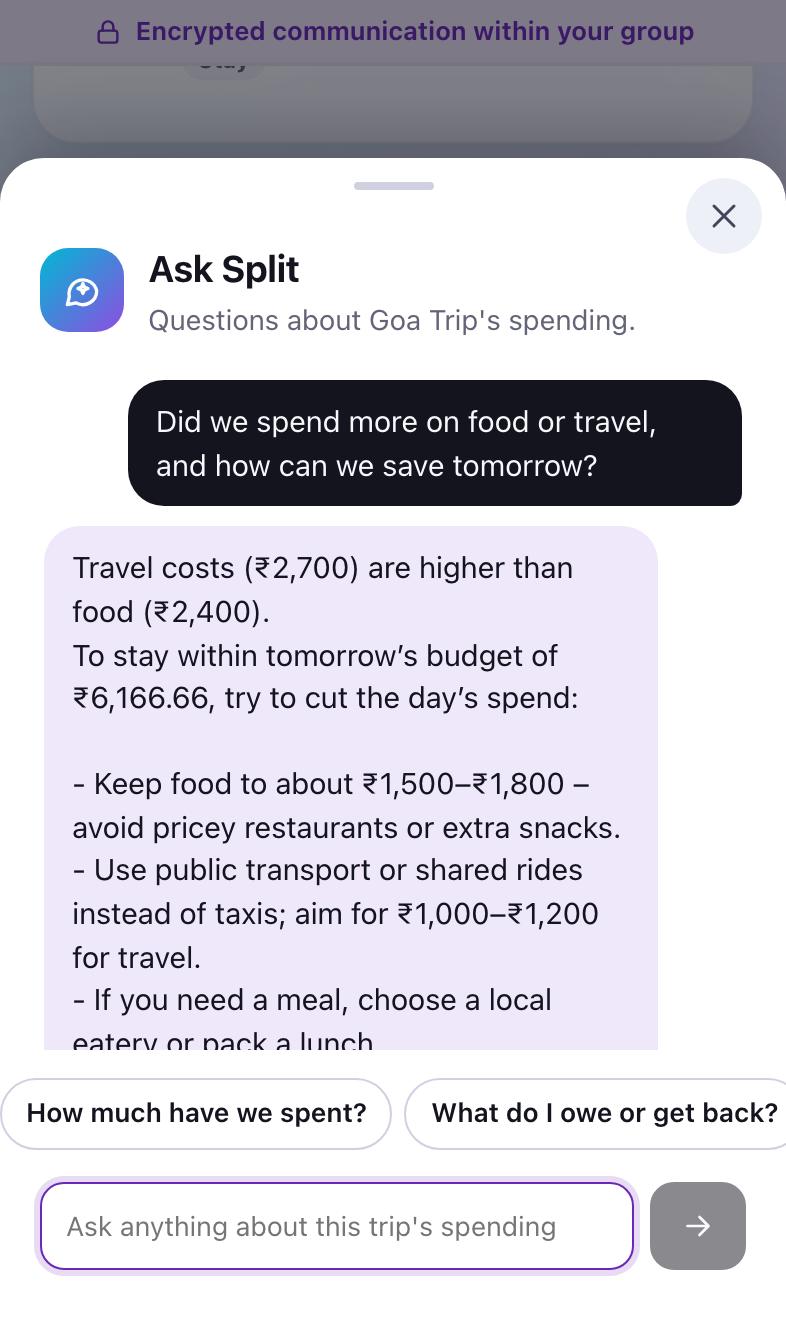
Tap Ask in the corner. The quick questions (how much you have spent, what you owe or get back, who paid most, where the money went, the biggest costs, the forecast, the budget and who pays whom) are answered straight away from the trip on your phone. They need no signal and nothing is sent anywhere.
-
Turn on AI answers (admin)
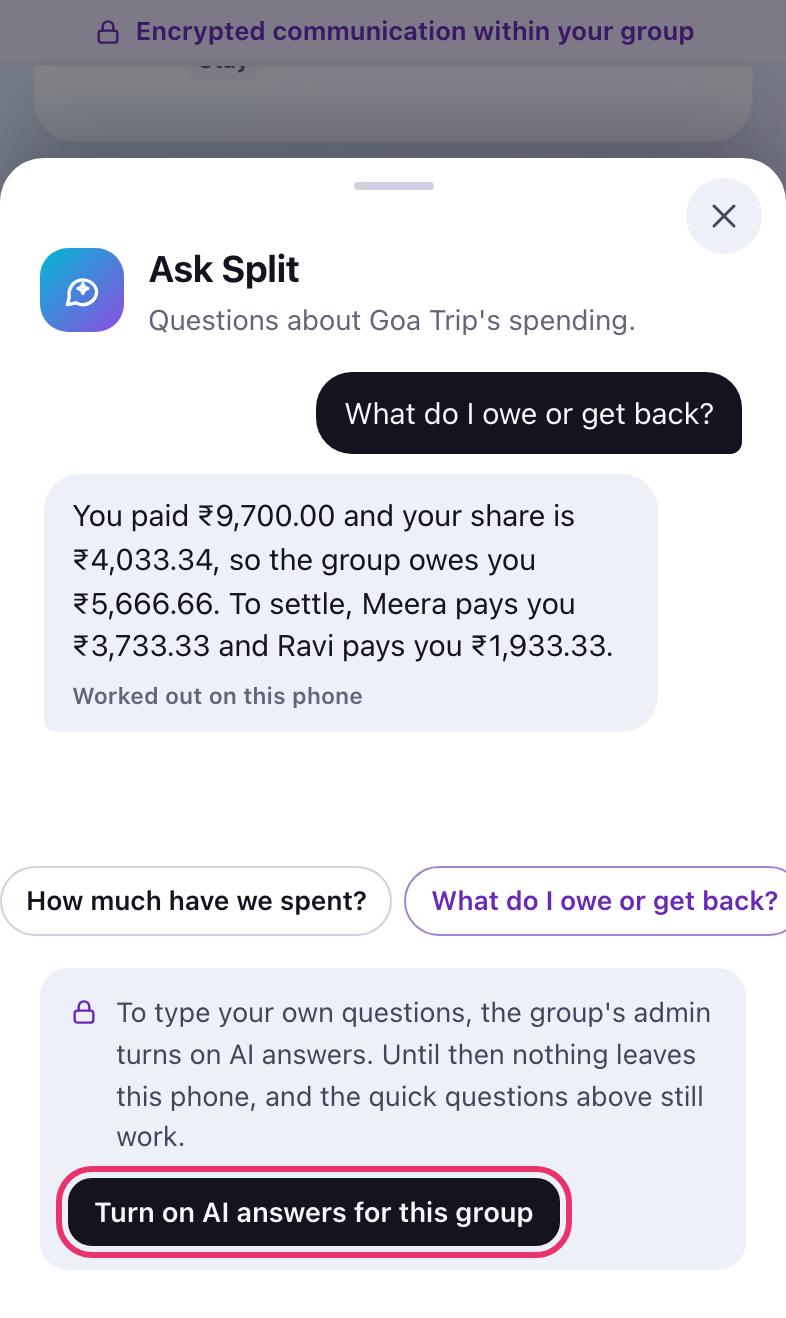
To type your own questions, the admin taps Turn on AI answers for this group inside Ask and confirms. Everyone sees in the group's activity that it was turned on, and the admin can turn it off again in Data.
-
Agree on your own phone
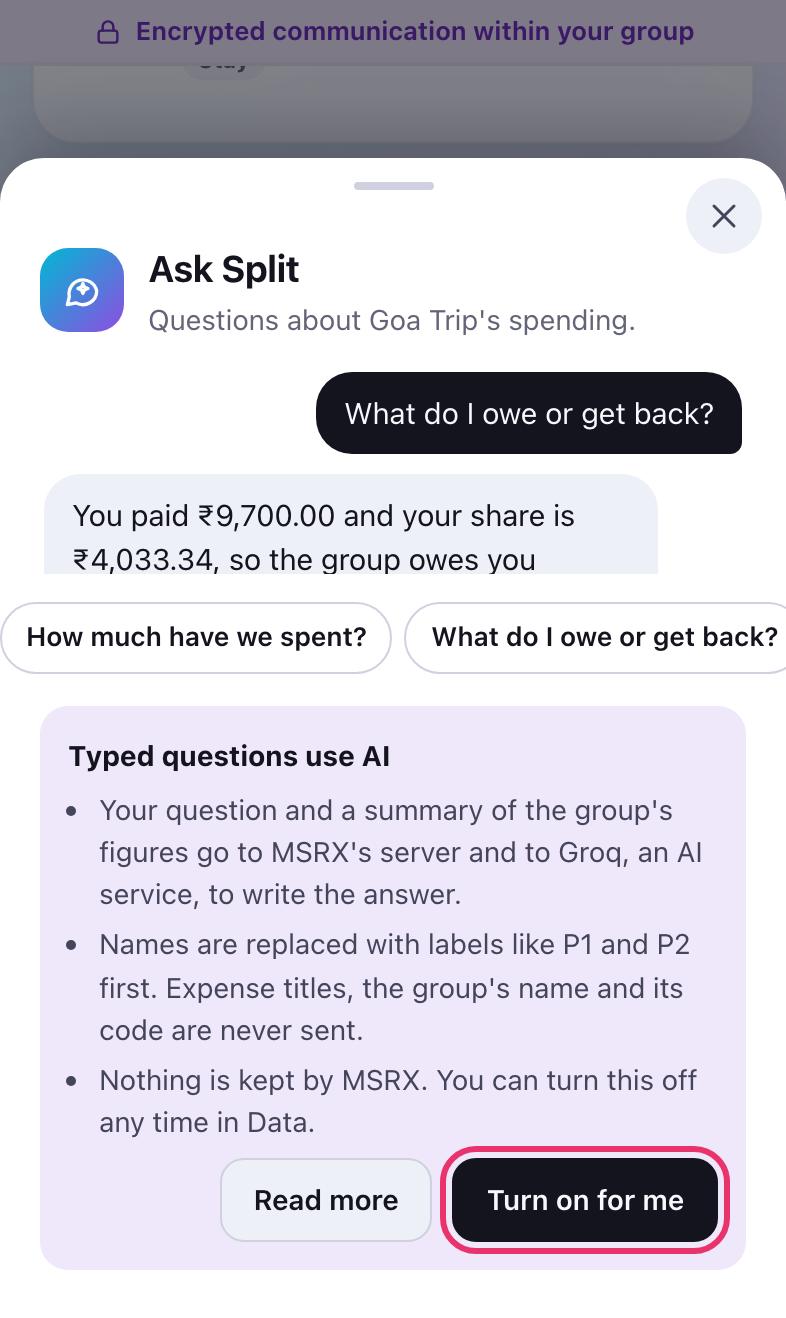
Each person still decides for themselves. The card explains what is sent: your question and a summary of the group's figures, with every name swapped for a label like P1. Expense titles, the group's name and its code are never sent. Tap Turn on for me to start, or leave it and keep using the quick questions. You can stop at any time with Stop on this phone in Data.
-
Ask anything about the spending
Type a question in your own words and send it. Common questions are still answered on your phone; others get an answer written by AI from the summary, with the names put back on your phone. AI answers are marked as such and can be wrong, so check the figures before you pay anyone.
People and roles
-
Tap anyone to see their contribution
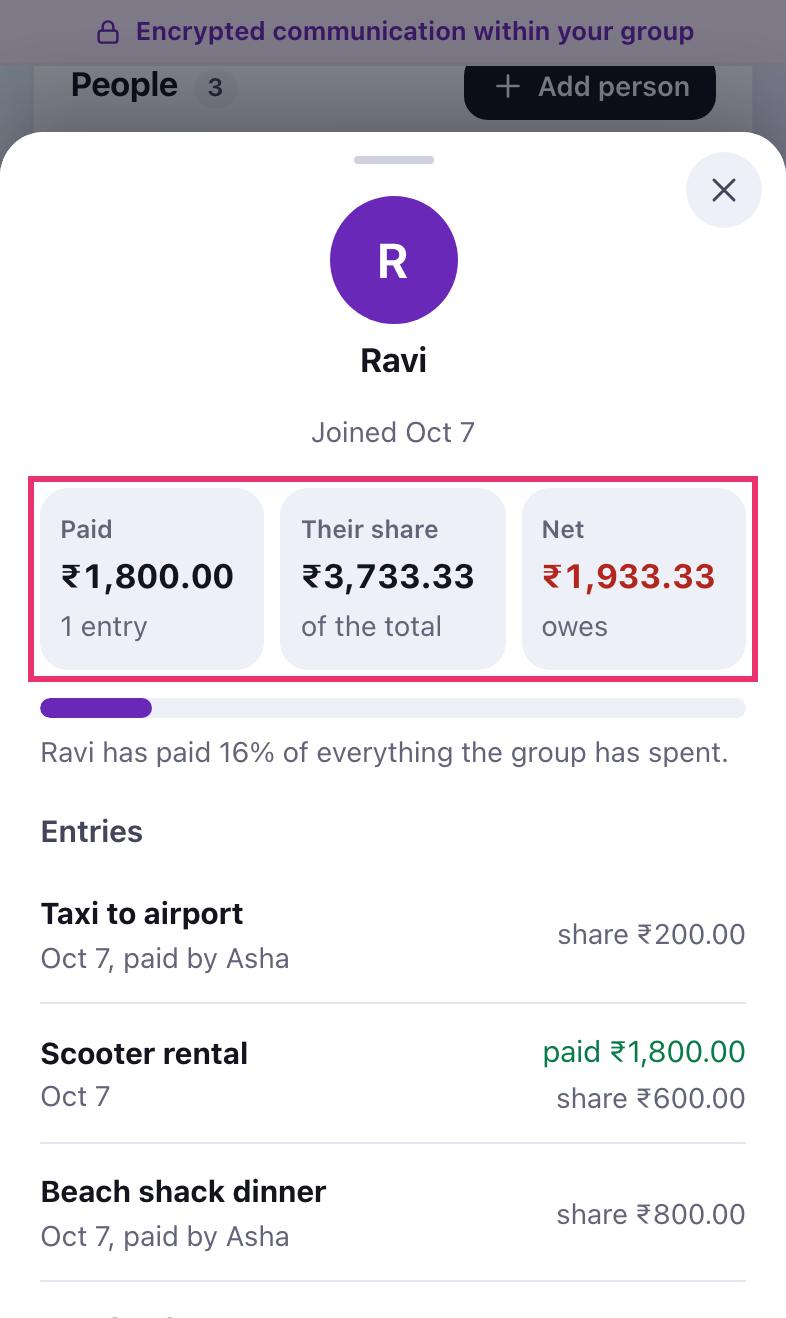
Tap a person anywhere in the app to see what they paid, their share, what they owe or are owed, how much of the group's spending they covered and every entry they were part of.
-
What the admin can do
The person who created the trip is its admin. On someone's profile, an admin can rename them, Make admin (a group can have several), or Remove from group. Their past entries and balance stay so the others can still settle with them.
If the only admin leaves, the next person who joined becomes admin automatically. Removing someone from the list doesn't stop them opening the trip if they still have the code; to shut someone out completely, the admin uses Move to a new group under Group settings in People.
-
Change your name or leave
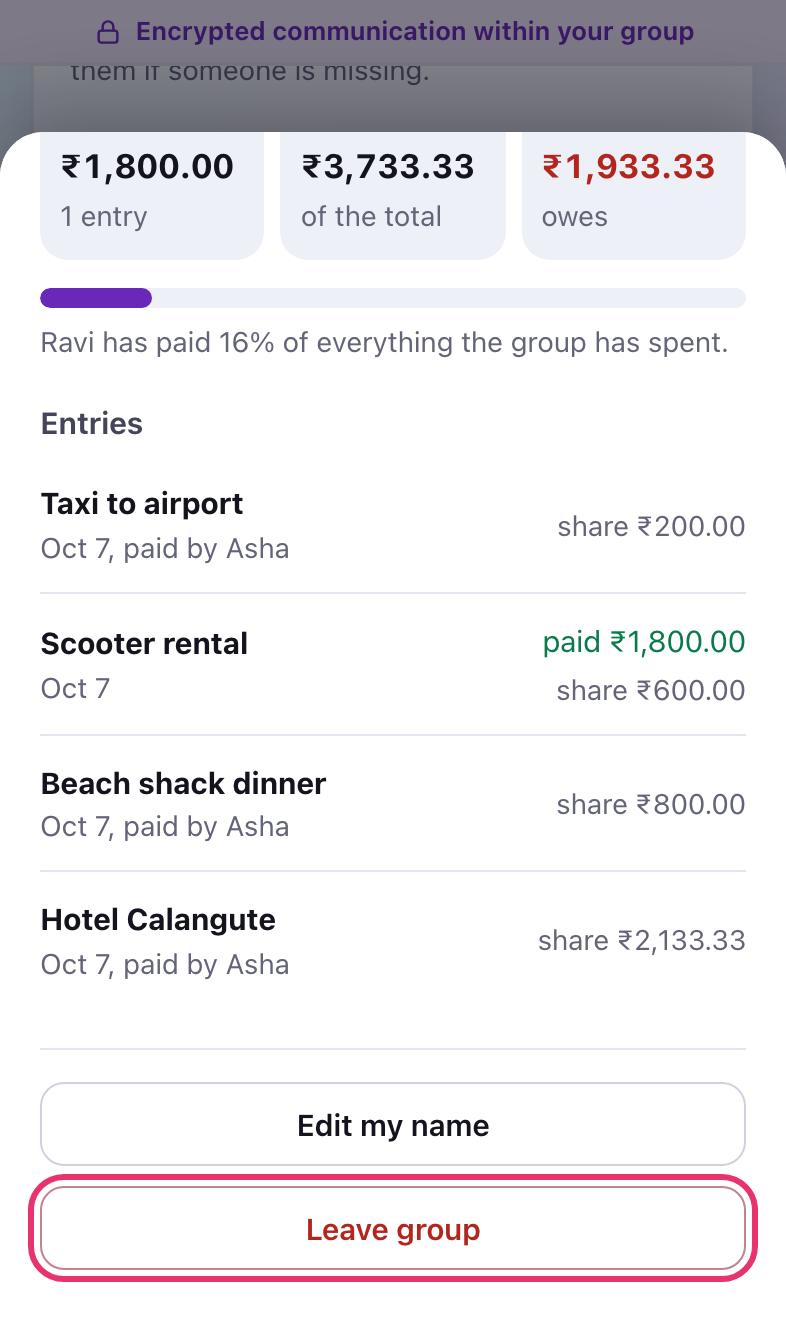
Tap your own name to fix it with Edit my name, or tap Leave group when you're done. Your entries and balance stay, and you can come back later.
Keeping your trip safe
-
How syncing works
There is no server holding your trip. Phones swap changes directly whenever two of them have the app open at the same time, so the sync line matters: connected means you are up to date; Nobody else has this group open means your changes are saved on your phone and will go across next time you are both online. Tap Sync now to try again at any time.
-
Back up your trip
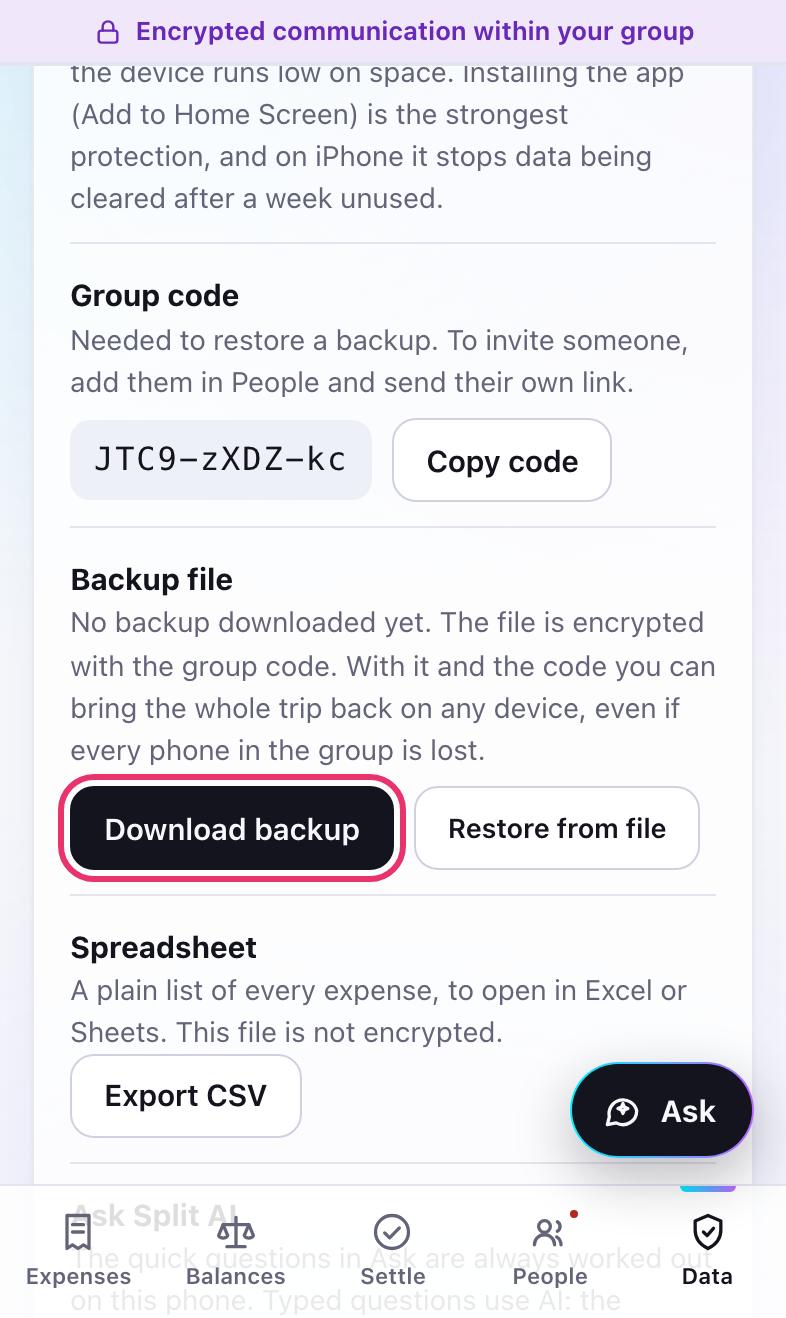
On the Data tab, tap Download backup now and then. The file is locked with your group code, so it is safe to keep in your email or cloud drive. With the file and the code you can bring the whole trip back on any phone from Restore from a backup on the home screen, even if every phone in the group is lost.
Export CSV gives you a plain spreadsheet of every expense. Remove from this device erases the trip from this phone only.
If something's not right
It says “Found 1 other device, but couldn't connect directly”
Some networks, often mobile data, block direct links between phones. Switch both phones to Wi-Fi, or tap Sync now. The app also tries a backup route through a relay.
My friend sees “Waiting for the group”
They joined with a link or code that has no copy of the trip, and nobody else has it open right now. Open the trip on your phone and keep it open for a moment, or send them the Copy long link version.
I lost my phone
The trip is still on everyone else's phones. Ask the admin for your personal link again, or use your backup file and the group code on the new phone.
Why can't I type a question in Ask?
Typed questions use AI, so they are off until the group's admin turns them on (inside Ask, or in Data) and you agree on your own phone with Turn on for me. Until then the quick questions still work, worked out on your phone with nothing sent.
Does Ask send our names to the AI?
No. Names are swapped for labels like P1 and P2 before anything leaves your phone, and expense titles, the group's name and its code are never sent. A nickname the app does not recognise is sent as you typed it, so use the names in the group.
The app looks different from these pictures
Close the tab or the app fully and open it again; it updates itself to the newest version.
Does it cost anything? Where is my data kept?
It is free, with no account, no ads and no tracking. Your trip lives only on the members' phones, never on an MSRX server.
Still stuck? Write to mrinalsinghraja@gmail.com. How the app works under the hood is on How it works.